
Running desktop and mobile versions of your site

(This post was largely translated from our Japanese version of the Webmaster Central Blog )

Recently I introduced several methods to ensure your mobile site is properly indexed by Google. Today I’d like to share information useful for webmasters who manage both desktop and mobile phone versions of a site.

One of the most common problems for webmasters who run both mobile and desktop versions of a site is that the mobile version of the site appears for users on a desktop computer, or that the desktop version of the site appears when someone finds them from a mobile device. In dealing with this scenario, here are two viable options:

Redirect mobile users to the correct version

When a mobile user or crawler (like Googlebot-Mobile) accesses the desktop version of a URL, you can redirect them to the corresponding mobile version of the same page. Google notices the relationship between the two versions of the URL and displays the standard version for searches from desktops and the mobile version for mobile searches.

If you redirect users, please make sure that the content on the corresponding mobile/desktop URL matches as closely as possible. For example, if you run a shopping site and there’s an access from a mobile phone to a desktop-version URL, make sure that the user is redirected to the mobile version of the page for the same product, and not to the homepage of the mobile version of the site. We occasionally find sites using this kind of redirect in an attempt to boost their search rankings, but this practice only results in a negative user experience, and so should be avoided at all costs.

On the other hand, when there’s an access to a mobile-version URL from a desktop browser or by our web crawler, Googlebot, it’s not necessary to redirect them to the desktop-version. For instance, Google doesn’t automatically redirect desktop users from their mobile site to their desktop site, instead they include a link on the mobile-version page to the desktop version. These links are especially helpful when a mobile site doesn’t provide the full functionality of the desktop version — users can easily navigate to the desktop-version if they prefer.
Switch content based on User-agent

Some sites have the same URL for both desktop and mobile content, but change their format according to User-agent. In other words, both mobile users and desktop users access the same URL (i.e. no redirects), but the content/format changes slightly according to the User-agent. In this case, the same URL will appear for both mobile search and desktop search, and desktop users can see a desktop version of the content while mobile users can see a mobile version of the content.

However, note that if you fail to configure your site correctly, your site could be considered to be cloaking, which can lead to your site disappearing from our search results. Cloaking refers to an attempt to boost search result rankings by serving different content to Googlebot than to regular users. This causes problems such as less relevant results (pages appear in search results even though their content is actually unrelated to what users see/want), so we take cloaking very seriously.

So what does “the page that the user sees” mean if you provide both versions with a URL? As I mentioned in the previous post, Google uses “Googlebot” for web search and “Googlebot-Mobile” for mobile search. To remain within our guidelines, you should serve the same content to Googlebot as a typical desktop user would see, and the same content to Googlebot-Mobile as you would to the browser on a typical mobile device. It’s fine if the contents for Googlebot are different from the one for Googlebot-Mobile.

One example of how you could be unintentionally detected for cloaking is if your site returns a message like “Please access from mobile phones” to desktop browsers, but then returns a full mobile version to both crawlers (so Googlebot receives the mobile version). In this case, the page which web search users see (e.g. “Please access from mobile phones”) is different from the page which Googlebot crawls (e.g. “Welcome to my site”). Again, we detect cloaking because we want to serve users the same relevant content that Googlebot or Googlebot-Mobile crawled.


Diagram of serving content from your mobile-enabled site


We’re working on a daily basis to improve search results and solve problems, but because the relationship between PC and mobile versions of a web site can be nuanced, we appreciate the cooperation of webmasters. Your help will result in more mobile content being indexed by Google, improving the search results provided to users. Thank you for your cooperation in improving the mobile search user experience.
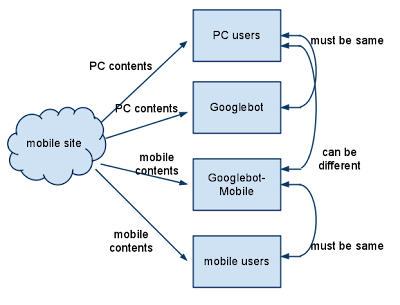
Reference from: by Jun Mukai, Software Engineer, Mobile Search Team in Google Webmaster Central Blog

Introducing AdWords Comparison Ads

Today we’re excited to begin testing a new feature of AdWords called AdWords Comparison Ads, which lets users compare multiple, relevant offers more easily. Comparison Ads is part of our continuing effort to make ads more relevant and useful to our users and to help you, our advertisers, reach the people who are most interested in your products and services.

AdWords uses a host of targeting and relevancy signals to determine the best ads for each query. However, sometimes a user’s query doesn’t provide enough information for us to confidently predict what they want. Take, for example, users who search for “mortgage.” Do they want a new home loan or a refinance? Do they want a fixed rate or an adjustable rate loan? Comparison Ads improves the ad experience on Google.com by letting users specify exactly what they are looking for and helping them quickly compare relevant offers side by side.

With Comparison Ads, you can also target your offers at a more granular level, leading to more valuable, qualified leads. To see how it works, let’s use our mortgage example. Users searching for “mortgage” on Google.com may see a promotion from Comparison Ads prompting them to select the type of loan they are looking for and to compare various rates.

If they click the promotion, users are taken to a page with more detailed sponsored results. They can choose directly from the offers listed on that page, or they can further refine their search by providing additional information like income and home value. By giving users the ability to refine their search on a number of relevant attributes, we are able to show more targeted ads and provide you with more valuable leads.

Once users find an offer that matches their specific needs, they can either call you directly or request a quote. If a user requests a quote, Google automatically anonymizes the user’s phone number and sends you a unique code that you can use to contact the user. You only pay if a user calls the phone number on your offer or fills out a form to request a quote.

While Comparison Ads is still an early-stage feature, we’ve focused on a number of ways to enhance the user experience:

  • Speed — Comparison Ads shows targeted offers in less than a second. There are no long forms for users to fill out – Users see specific offers immediately and only need to fill in additional information if they wish to further refine their results.
  • Transparency — Comparison Ads only shows real products. There are no teaser rates, or bait and switch offers. Comparison Ads also standardizes the information presented to users, making it easy for them to sort and compare offers on a side by side basis.
  • Privacy — Comparison Ads won’t send advertisers any user information, including anonymized phone numbers, unless the user explicitly requests more information about an advertiser’s offer.

At this time, Comparison Ads will only show to a small number of users in select U.S. states and is only available to a limited number of advertisers in the mortgage/refinance space. Over time, we’ll increase the number of users who see Comparison Ads offers as well as the number of advertisers able to participate.

Reference from: Posted by Dan Friedman, Inside AdWords crew

New alerts for your campaigns

Alerts are a great way to stay on top of changes in your account. In addition to the account alerts already available for billing and campaign maintenance, you can also use custom alerts to monitor shifts in key metrics like clicks and cost. We’d like to tell you about two additional alert options that we’re introducing today.

First, we’ve added alerts for new keyword and budget ideas in the Opportunities tab. Ideas are personalized tips to help you potentially improve your campaigns’ effectiveness. New ideas are usually generated for campaigns and ad groups every few weeks, but you may miss ideas that can expand your coverage and boost your traffic if you don’t check the Opportunities tab regularly. Now, when there are new ideas available for your review, you’ll see them highlighted along with the rest of your campaign alerts.

Second, if you’re using AdWords conversion tracking, you can now create custom alerts for changes in conversion volume, conversion rate, and cost per conversion. By setting alerts for your conversion data, you can make sure that you’re quickly notified about fluctuations in your key metrics.

Please note that we’re still working to bring custom alerts to all linked accounts for My Client Center (MCC) users. In the meantime, you can still set custom alerts for your individual accounts if you’re able to log into them directly.

Reference from: Posted by Dan Friedman, Inside AdWords crew

Ads Sitelinks – Increasing choice and relevancy in search ads

As part of our ongoing commitment to helping users find the information they’re seeking online, we’re happy to announce the launch of Ad Sitelinks.

Ad Sitelinks is a new AdWords feature that allows you to extend the value of your existing AdWords ads by providing additional links to content deep within your sites. Rather than sending all users to the same landing page, Ad Sitelinks will display up to 4 additional Destination URLs on your search-based text ad for users to choose from. By providing users with more options, you can create richer, more relevant ads that improve the value of your brand terms and other targeted keywords.

With Ad Sitelinks, you can point to specific information on your site such as gift registries, special deals, holiday or event-related promotions, and store locators. Early participants in Ad Sitelinks, like Priceline.com, found that presenting multiple link options made it easier to direct users to relevant information on their sites, driving them deeper into the conversion funnel.

Currently, the option to set up Ad Sitelinks will only appear for advertisers whose ads meet a certain high quality threshold.

If your account qualifies to run this feature, you’ll find the option to set up Ad Sitelinks in your Campaign Settings tab — it will appear as “Show additional links to my site” under the “Ad extensions” section.

To learn more about Ad Sitelinks, read our FAQ in the Help Center.

Reference from: Dan Friedman, Inside AdWords crew

Verifying a Blogger blog in Webmaster Tools

You may have seen our recent announcement of changes to the verification system in Webmaster Tools. One side effect of this change is that blogs hosted on Blogger (that haven’t yet been verified) will have to use the meta tag verification method rather than the “one-click” integration from the Blogger dashboard. The “Webmaster Tools” auto-verification link from the Blogger dashboard is no longer working and will soon be removed. We’re working to reinstate an automated verification approach for Blogger hosted blogs in the future, but for the time being we wanted you to be aware of the steps required to verify your Blogger blog in Webmaster Tools.

Step-By-Step Instructions:

In Webmaster Tools
1. Click the “Add a site” button on the Webmaster Tools Home page
2. Enter your blog’s URL (for example, googlewebmastercentral.blogspot.com) and click the “Continue” button to go to the Manage verification page
3. Select the “Meta tag” verification method and copy the meta tag provided

In Blogger
4. Go to your blog and sign in
5. From the Blogger dashboard click the “Layout” link for the blog you’re verifying
6. Click the “Edit HTML” link under the “Layout” tab which will allow you to edit the HTML for your blog’s template
7. Paste the meta tag (copied in step 3) immediately after the <head> element within the template HTML and click the “SAVE TEMPLATE” button

In Webmaster Tools
8. On the Manage Verification page, confirm that “Meta tag” is selected as the verification method and click the “Verify” button

Your blog should now be verified. You’re ready to start using Webmaster Tools!

Posted by Jonathan Simon, Webmaster Trends Analyst

應用 IIS 6.0 的 Gzip 壓縮功能降低網路傳輸量

生存在資訊爆炸的網頁程式設計師們應該都會遇到網站效能不佳的問題,然而網站效能不佳有多種原因,舉凡 Web Server 本身的效能問題、系統架構設計不良、後端資料庫負載過重及設計不良,Web Server 將網頁內容傳輸到使用者瀏覽器的網路傳輸問題等等,這些都是需要面對的問題,網路傳輸問題最簡單也最容易解決的就是降低Web Server傳輸到使用者瀏覽器的網頁內容大小,降低網頁內容大小也有多種方法,例如把HTML檔案的換行及不必要的空白字元移除,CSS 盡量設計共用架構不要使用 Inline,壓縮 Javascript 檔案,縮小引用的圖檔等,還有一個大部分 Web Server 如: WebSphere、APACHE、IIS 5.0 以上都支援的 GZIP HTTP 壓縮功能,不過你用壓縮功能一定要犧牲一些 CPU Time ,目前大部分入口網站也都使用此項功能來減少頻寬的使用率,有效的提高網頁瀏覽的速度,我的 E 政府 (www.gov.tw)、Yahoo(tw.yahoo.com) 等大型入口網站也都有使用 GZIP,這也說明了他是個很普遍的技術,如果想提升瀏覽速度的話,不妨盡快評估導入此功能。

我們可以使用 HttpWatch 工具來證明上述的網站使用了 Gzip 壓縮技術,左邊視窗的 Accept-Encoding 屬性表示瀏覽器有支援 Gzip,右邊視窗的 Content-Encoding 則表示目前的網頁內容有使用 Gzip 壓縮 :

1. 我的E政府 www.gov.tw

clip_image002

2. 台灣雅虎奇摩 tw.yahoo.com

clip_image004

3. 點部落(尚未使用任何壓縮,因此無Content-Encoding屬性)

clip_image006


我們現在就來了解一下如何在 IIS 6.0 上設定 Gzip,來壓縮靜態檔案及動態檔案,這裡的步驟應該有不少的 Blog 文章說明,不過我還是自己做個紀錄,以後就不需要到處去找資料了。

1. 開啟網際網路資訊服務(IIS)管理員,並勾選啟用直接 Metabase 編輯,如此就可以在修改 IIS Metabase 檔設定後,各網站便立即生效,不然就得在設定後執行 IISReset 這是 Production 正式機所不允許的。

clip_image008 clip_image010


2. 於 IIS 管理員選擇「網站」、「內容」、「服務」頁籤,勾選「壓縮應用程式檔案」、「壓縮靜態檔案」,暫存目錄的大小限制可依需求做設定,一般不建議限制,不然資料夾的使用空間可是需要隨時注意才行。

壓縮應用程式檔案」- 就 是開啟 IIS Server 端動態網頁的即時壓縮網頁資料內容,例如 : .asp、.aspx、.php、.jsp 等,IIS Server 並不會儲存這些動態檔所產生的網頁內容的壓縮副本,而是即時壓縮後將內容傳送給瀏覽器,所以他 比較耗 CPU Time 。

image

壓縮靜態檔案」- IIS Server 會先檢查靜態檔案暫存目錄下,是否目前的 Request 檔的壓縮檔案,並檢查原檔是否已被修改過,若修改過則會重新壓縮該檔,然後將壓縮的檔案內容回傳給瀏覽器,靜態檔如: .htm、.html、.cs、.js 等。

image

其實 IIS Server在傳送給瀏覽器時,都會先檢查瀏覽器是否支援 GZip 壓縮功能,不然 IIS Server 如果傳送已壓縮過的網頁內容給瀏覽器時,瀏覽器不支援 Gzip 的話,將無法正常顯示網頁資料給使用者瀏覽。


image image


3.新增一個網頁服務延伸,這裡便是以人工方式來擴充 IIS 的 ISAPI。

你必須留意到 ISAPI Extension 、ISAPI Filter 是不同的架構,不過他們的目的都是為了擴充 IIS 的功能,你可以參考 IIS 6.0 的應用程式執行模式 會有一些說明。

image image


4.接下來是 IIS metabase 檔的設定,此檔案是以 XML 格式儲存的,這是最重要的步驟,且必須小心每個設定的屬性值,不然會發生嚴重的系統錯誤,建議設定前先備份該檔案。

檔案的路徑預設是在 C:\Windows\System32\inetsrv\MetaBase.xml ,你可以使用任何的文字編輯器來修改此檔案的 <IIsCompressionScheme /> ,不過我建議可以使用 IIS Metabase Explorer 工具(IIS 6.0 Resource Kit Tools)來協助編輯, 這樣比較不容易出錯。

在此你會發現我們編輯了兩個 <IIsCompressionScheme /> 不過他們是屬於不同的 HTTP 壓縮演算法,一個是 Deflate,一個是 Gzip,我們就順便設定這兩個,因為他們只是壓縮演算法不同而已。

<IIsCompressionScheme	Location ="/LM/W3SVC/Filters/Compression/deflate"
		HcCompressionDll="%windir%\system32\inetsrv\gzip.dll"
		HcCreateFlags="0"
		HcDoDynamicCompression="TRUE"
		HcDoOnDemandCompression="TRUE"
		HcDoStaticCompression="FALSE"
		HcDynamicCompressionLevel="9"
		HcFileExtensions="htm
			html
			txt
			js
			css
			doc
			txt
			ptt
			xls
			htc"
		HcOnDemandCompLevel="10"
		HcPriority="1"
		HcScriptFileExtensions="asp
			exe
			aspx
			asmx
			dll"
	>
</IIsCompressionScheme>
<IIsCompressionScheme	Location ="/LM/W3SVC/Filters/Compression/gzip"
		HcCompressionDll="%windir%\system32\inetsrv\gzip.dll"
		HcCreateFlags="1"
		HcDoDynamicCompression="TRUE"
		HcDoOnDemandCompression="TRUE"
		HcDoStaticCompression="TRUE"
		HcDynamicCompressionLevel="9"
		HcFileExtensions="htm
			html
			txt
			js
			css
			htc
			doc
			ptt
			xls"
		HcOnDemandCompLevel="10"
		HcPriority="1"
		HcScriptFileExtensions="asp
			exe
			aspx
			asmx
			dll"
	>
</IIsCompressionScheme>

這裡提醒你的是 : 如果你的網站使用了 ASP.NET AJAX 的話,建議你不要壓縮 .axd 檔案,不然網頁很容易發生錯誤,因為,瀏覽器不見得支援解壓縮 .axd,所以你必須做取捨的,不 過,你可以在 ScriptManager 或 ToolkitScriptManager 控制項設定 ScriptMode=”Release” 或 ScriptMode=”Auto”(預設值) 搭配 Web.config 的 <system.web><compilation debug=”false” defaultLanguage=”c#” /></system.web> 設定,依經驗也可以達到 ASP.NET AJAX 一些檔案的壓縮效果。如果真的要壓縮網站的 .axd 檔,建議要做網站功能的回歸測試。<參考:縮減AJAX的axd內容大小>

Update 2009/02/11 : 使用 HttpWatch 針對 ASP.NET AJAX 的 WebResource.axd 及 ScriptResource.axd 側錄後發現,其實依照上述的設定後,會由 AJAX 的 HttpHandler 自動以 GZIP 壓縮上述兩個 .axd ,雖然你的網站可能不只這兩個 .axd 檔,但為了避免發生不可預期的問題,所以,建議盡量避免在 IIS 上又開啟 .axd 檔壓縮。

使用 IIS Metabase Explorer 編輯 :

image

我們變更了三個設定,若有需要的話請自行修改其他屬性值設定。

  • HcFileExtensions-htm, html, txt , js, cs, htc, doc, ptt, xls
  • HcDynamicCompressionLevel-9 (值越大壓縮效果越好,但越耗 CPU Time)
  • HcScriptFileExtensions-asp, exe, aspx, asmx, dll


4. 設定完畢後須做網站的功能回歸測試以確保所有功能均正常運作,若發現有在同一台 IIS Server 上有網站不能使用 Gzip 壓縮的話,也可單獨排除該網站不進行壓縮。

image

要關閉識別元為 132465789 網站的靜態壓縮功能這邊提供兩種方法,另外你也可以直接修改 Metabase.xml 檔:

  • 你可以使用指令方式設定該網站的 DoStaticCompression 屬性為 0 (False),Usertype屬性為 file 。

cscript C:\Inetpub\AdminScripts\adsutil.vbs set w3svc/123465789/root/DoStaticCompression False

  • 使用 IIS Metabase Expolorer 來新增一個 DoStaticCompression  DWORD

image image


要關閉識別元為 132465789 網站的動態壓縮功能這邊提供兩種方法,另外你也可以直接修改 Metabase.xml 檔:

  • 你可以使用指令方式設定該網站的 DoDynamicCompression 屬性為 0 (False),Usertype屬性為 file 。

cscript C:\Inetpub\AdminScripts\adsutil.vbs set w3svc/123456789/root/DoDynamicCompression False

  • 使用 IIS Metabase Expolorer 來新增一個 DoDynamicCompression DWORD

image


總結

我試過一些熱心網友分享或是 Open Source 的應用 GZIP 的 ASP.NET HTTPModule 來壓縮 ASP.NET AJAX 網站的網頁資料內容,

例如: Code Project 的 HTTP Compression Module 此功能可壓縮 WebResource.axd 檔,但是,在 .NET Framework 3.5 的 ASP.NET AJAX 環境測試依然有部分網頁來是會產生錯誤,

因此,我還是放棄對 axd 檔的壓縮,畢竟很少有解決方案是能夠百分百滿足需求的,依 80 / 20 法則,我認為我所使用的 IIS 啟用 GZIP 壓縮,

並搭配 ASP.NET AJAX 的 ScriptMamager 、 ToolkitScriptManager 的 ScriptMode 屬性設定為 Release 方法已經足夠,所以,在此分享經驗給大家參考。

Reference from: http://www.dotblogs.com.tw/jameswu/archive/2009/01/17/6846.aspx

2010 十大科技趨勢 雲端大紅

顧能發表明(2010)年全球前10大企業科技趨勢預測,近年逐漸受企業重視的雲端運算(Cloud Computing)商機、綠色資訊科技(IT for Green),以及風瀰全球諸如Facebook之類的社交運算(Social Computing),以及蘋果以iPhone創造出的行動電話應用程式(Mobile Application)商業模式等均榜上有名。顧能指出,這些技術將在未來三年內造成重大影響。 顧能每年發表年度科技趨勢預期,其評選出的科技,通常被業界視為未來幾年資訊科技產業的重要走向,是科技業做年度決策參考指標之一。 顧能今年提出的前十大趨勢為:雲端運算、進階分析(Advanced Analytics)、客端運算(Client Computing)、綠色IT、重塑資料中心(Reshaping the Data Center)、社交運算、安全監視(Security-Activity Monitoring)、快閃記憶體(Flash Memory)、可用性虛擬化(Virtualization for Availability)、行動應用軟體。顧能認為,這十大科技將在未來三年內對企業造成重大影響。 顧能分析師Dave Clearly表示,PC相關廠商無不積極趕搭雲端運算風潮,這種現象值得認真看待。顧能看好,雲端資源有助縮減IT成本。顧能表示,雲端服務從最陽春的亞馬遜Web Services,到更精緻的Google App Engine,都屬於雲端商機的範疇,企業應評估最適合其發展的形式。 有趣的是,近來風瀰全球的Facebook也羅列在十大趨勢之中。Facebook以及Twitter這類網路應用,即是顧能指出的社交運算。顧能表示,Social Computing包括企業內部社交網路、與顧客的互動等,企業需要了解社交網路的運作方式,和潛在的商業應用。 在快閃記憶體方面,顧能認為,快閃記憶體價格下滑,可望驅動其在未來幾年內以超過100%的複合年增率(CAGR)增長,會被消費者裝置、娛樂設備以及其他內嵌式IT系統等產品大量採用。 此外,綠色科技、進階分析、社交運算等,連續兩年入榜,而蘋果創造出來的行動電話結合軟體應用程式的商業模式,則在今年新上榜,預料未來市場規模將逐漸壯大。

工商時報【楊玟欣/台北報導】10/22/2009

Google Ad Planner

Google Ad Planner 是 Google 2008年6月24號發佈的一個免費的媒體計劃工作,它能夠說明廣告主或廣告代理商通過定義廣告目的受眾的人口統計特徵和興趣愛好後,快速找出這些受眾有可能訪問的網站,從而使得他們借助這些訊息能做出更加明智的廣告投放決策。

1、Google Ad Planner 提供的資料資料

  • 通 過 Google Ad Planner,會員幾乎可以查詢到所有網站的諸多敏感資料。大至 Yahoo、百度、新浪、搜狐、QQ、網易等大牌網站,小至一些個人部落格,比如本站。不過 Google 不提供它自身公司旗下網站的資料,比如查詢 Google、Youtube,都是看不到資料的。
  • 可以查詢到的敏感封包括:網站流量(UV、PV、到達率、總訪問量、人均訪問次數、人均停留時間)、訪客特徵(性別、年齡、教育程度、家庭收入)、網站分類、廣告訊息(支援的廣告類型、日平均展現)等,資料來源於40多個國家以30天作為一個統計區間每30天更新一次
  • Google 認為因為這些資料是基於海量的查詢和網站資料而估算出來的,已經精確到了可以直接拿來供廣告決策使用的程度。

2、Google Ad Planner 的資料來源猜測

Google 對 Google Ad Planner 資料來源的官方解釋中內含:

  • 整合過的 Google 搜尋資料
  • Google Analytics 的匿名資料
  • 其他外部的消費者面板資料
  • 第三方市場研究機構的資料
  • Google AdSense 的資料(官方解釋中沒有提及,但是說明中提到);

除了上述來源外,網友猜測的其他來源還有:

  • Google Toolbar 的監控資料(參見:TechCrunchsearch engine land
  • Google 各服務的會員帳號資料(參見:月光部落格

Danny Sullivan 還特地就 Google Ad Planner 是否使用了 Toolbar 的資料向 Google 求證,得到的答覆是無可奉告,因為這是 Google 不能說的密碼(secret sauce),不過 Danny Sullivan 因此更加確信 Google Ad Planner 用了 Toolbar 的資料。

3、對 Google Ad Planner 具體資料的來源分析

下面結合已有資料,我對 Google Ad Planner 的資料來源進行一個比較主觀的分析,看看 Google Ad Planner 提供的具體資料大概是怎麼來的。

網站流量

  • 將網站按照是否使用了 Google Analytics 分為兩類:
    • 使用了 Google Analytics 的網站(GA 網站)
    • 百度、Yahoo 等不會使用 Google Analytics 的網站(NGA 網站)
  • 從 Toolbar 的監控資料中可以得到大部分網站的初步流量(TB 值)
  • 從大量設定了「資料共享」的 Google Analytics 帳戶中可以獲得 GA 網站的 GA 訪問統計資料(GA 值,benchmarking data)。然後與它們的 TB 值進行對比,可以得到真實流量與初步流量兩者大概的比值(GATB 值);
  • 根據 TB 值和 GATB 值,Google 可以估算出 NGA 網站的真實流量。

若果上述假設成立的話,Google Ad Planner 的網站流量資料主要來源於:

  • Google Analytics 的匿名資料
  • Google Toolbar 的監控資料

訪客特徵

Google Ad Planner 說明中說明目前訪客的人口統計資料來源內含:

  • 第三方市場研究機構的資料
  • 其他外部的消費者面板資料

鑒於目前 Google Ad Planner 確實只能提供來自美國的訪客特徵,我覺得上述說法是可信的。月光部落格發現「中 文網站統計中,以海外網站較多,特別是北美的中文網站很多(裡面很多網站從國內無法訪問),而國內的很少」,出現這樣的怪現象就是因為 Google Ad Planner 目前只包括美國的訪客特徵資料的緣故,用美國的訪客特徵資料去篩他們可能訪問的中文網站,出來的自然是北美會員比較喜歡上的而往往已經被 GFW 和諧了的那些網站。

網站分類

Google Ad Planner 說明中說明網站的分類屬性主要是系統自動建立的,修正資料來源於

  • Google Analytics 的匿名資料

這個說法比較可信,不過比較搞笑的是百度被分類為「Government & Regulatory Bodies」。

廣告訊息

關於網站支援的廣告類型,日平均展現等資料,毫無懸念應該來源於:

  • Google AdSense 的資料
  • Reference from: http://por.tw/seo/rewrite.php/read-73.html

    Use YouTube to drive awareness and conversions

    If you’d like to expand your advertising to YouTube, consider using YouTube Promoted Videos. You can make a video about your business and then promote that video alongside relevant YouTube search results. Similar to AdWords, YouTube Promoted Videos lets you decide where you’d like your videos to appear on YouTube, place bids in an automated online auction, and set daily spending budgets.

    Last week we launched “Call-to-Action,” a new feature that allows you to add a clickable overlay to your Promoted Videos. This allows you to drive viewers to a website off-YouTube, which can help you drive more conversions and generate engaged, well-targeted traffic for your brand or product.

    You can learn more about this new conversion feature of by visiting the recently launched YouTube Biz Blog. To start using Promoted Videos today, visit ads.youtube.com.

    Posted by Amanda Kelly, Inside AdWords crew Monday, July 06, 2009 at 1:12 PM

    Reference from; http://adwords.blogspot.com/2009/07/use-youtube-to-drive-awareness-and.html

    New parameter handling tool helps with duplicate content issues

    Duplicate content has been a hot topic among webmasters and our blog for over three years. One of our first posts on the subject came out in December of ’06, and our most recent post was last week. Over the past three years, we’ve been providing tools and tips to help webmasters control which URLs we crawl and index, including a) use of 301 redirects, b) www vs. non-www preferred domain setting, c) change of address option, and d) rel=”canonical”.
    We’re happy to announce another feature to assist with managing duplicate content: parameter handling. Parameter handling allows you to view which parameters Google believes should be ignored or not ignored at crawl time, and to overwrite our suggestions if necessary.
    Let’s take our old example of a site selling Swedish fish. Imagine that your preferred version of the URL and its content looks like this:
    http://www.example.com/product.php?item=swedish-fish
    However, you may also serve the same content on different URLs depending on how the user navigates around your site, or your content management system may embed parameters such as sessionid:
    http://www.example.com/product.php?item=swedish-fish&category=gummy-candy
    http://www.example.com/product.php?item=swedish-fish&trackingid=1234&sessionid=5678
    With the “Parameter Handling” setting, you can now provide suggestions to our crawler to ignore the parameters category, trackingid, and sessionid. If we take your suggestion into account, the net result will be a more efficient crawl of your site, and fewer duplicate URLs.
    Since we launched the feature, here are some popular questions that have come up:
    Are the suggestions provided a hint or a directive?
    Your suggestions are considered hints. We’ll do our best to take them into account; however, there may be cases when the provided suggestions may do more harm than good for a site.
    When do I use parameter handling vs rel=”canonical”?
    rel=”canonical” is a great tool to manage duplicate content issues, and has had huge adoption. The differences between the two options are:
    • rel=”canonical” has to be put on each page, whereas parameter handling is set at the host level
    • rel=”canonical” is respected by many search engines, whereas parameter handling suggestions are only provided to Google
    Use which option works best for you; it’s fine to use both if you want to be very thorough.
    As always, your feedback on our new feature is appreciated.