Google Videos best practices

by Maile Ohye

We’d like to highlight three best practices that address some of the most common problems found when crawling and indexing video content. These best practices include ensuring your video URLs are crawlable, stating what countries your videos may be played in, and that if your videos are removed, you clearly indicate this state to search engines.

  • Best Practice 1: Verify your video URLs are crawlable: check your robots.txt
    • Sometimes publishers unknowingly include video URLs in their Sitemap that are robots.txt disallowed. Please make sure your robots.txt file isn’t blocking any of the URLs specified in your Sitemap. This includes URLs for the:
      • Playpage
      • Content and player
      • Thumbnail

      More information about robots.txt.

  • Best Practice 2: Tell us what countries the video may be played in
    • Is your video only available in some locales? The optional attribute “restriction” has recently been added (documentation at http://www.google.com/support/webmasters/bin/answer.py?answer=80472), which you can use to tell us whether the video can only be played in certain territories. Using this tag, you have the option of either including a list of all countries where it can be played, or just telling us the countries where it can’t be played. If your videos can be played everywhere, then you don’t need to include this.
  • Best Practice 3: Indicate clearly when videos are removed — protect the user experience
    • Sometimes publishers take videos down but don’t signal to search engines that they’ve done so. This can result in the search engine’s index not accurately reflecting content of the web. Then when users click on a search result, they’re taken to a page either indicating that the video doesn’t exist, or to a different video. Users find this experience dissatisfying. Although we have mechanisms to detect when search results are no longer available, we strongly encourage following community standards.

      To signal that a video has been removed,

      1. Return a 404 (Not found) HTTP response code, you can still return a helpful page to be displayed to your users. Check out these guidelines for creating useful 404 pages.
      2. Indicate expiration dates for each video listed in a Video Sitemap (use the <video:expiration_date> element) or mRSS feed (<dcterms:valid> tag) submitted to Google.

For more information on Google Videos please visit our Help Center, and to post questions and search answers check out our Help Forum.

Posted by Nelson Lee, Product Manager, Video Search

Reference from: http://googlewebmastercentral.blogspot.com/2010/06/google-videos-best-practices.html?

Google Videos best practices

by Maile Ohye

We’d like to highlight three best practices that address some of the most common problems found when crawling and indexing video content. These best practices include ensuring your video URLs are crawlable, stating what countries your videos may be played in, and that if your videos are removed, you clearly indicate this state to search engines.

  • Best Practice 1: Verify your video URLs are crawlable: check your robots.txt
    • Sometimes publishers unknowingly include video URLs in their Sitemap that are robots.txt disallowed. Please make sure your robots.txt file isn’t blocking any of the URLs specified in your Sitemap. This includes URLs for the:
      • Playpage
      • Content and player
      • Thumbnail

      More information about robots.txt.

  • Best Practice 2: Tell us what countries the video may be played in
    • Is your video only available in some locales? The optional attribute “restriction” has recently been added (documentation at http://www.google.com/support/webmasters/bin/answer.py?answer=80472), which you can use to tell us whether the video can only be played in certain territories. Using this tag, you have the option of either including a list of all countries where it can be played, or just telling us the countries where it can’t be played. If your videos can be played everywhere, then you don’t need to include this.
  • Best Practice 3: Indicate clearly when videos are removed — protect the user experience
    • Sometimes publishers take videos down but don’t signal to search engines that they’ve done so. This can result in the search engine’s index not accurately reflecting content of the web. Then when users click on a search result, they’re taken to a page either indicating that the video doesn’t exist, or to a different video. Users find this experience dissatisfying. Although we have mechanisms to detect when search results are no longer available, we strongly encourage following community standards.

      To signal that a video has been removed,

      1. Return a 404 (Not found) HTTP response code, you can still return a helpful page to be displayed to your users. Check out these guidelines for creating useful 404 pages.
      2. Indicate expiration dates for each video listed in a Video Sitemap (use the <video:expiration_date> element) or mRSS feed (<dcterms:valid> tag) submitted to Google.

For more information on Google Videos please visit our Help Center, and to post questions and search answers check out our Help Forum.

Posted by Nelson Lee, Product Manager, Video Search

Reference from: http://googlewebmastercentral.blogspot.com/2010/06/google-videos-best-practices.html?

Goolge Video sitemaps

You may see the intruction page with video here

[youtube=http://www.youtube.com/watch?v=lVEKhaI_RC4]

For more details of getting start, please check here

Get Started with Video Sitemaps

Sitemaps help get your videos indexed and improve their visibility in Google Search. Better yet, they’re easy to implement and can be used by anyone with videos on the web.

Implement Video Sitemaps in three steps:

  • Select Your Content
    What videos do you want to help Google index and include in search results?
  • Create Your Sitemap
    Read our help articles, and share this information with your technical team.
  • Submit & Monitor
    Sign into Google Webmaster Tools to add your Video Sitemap.

New to Sitemaps? Learn why they’re important.

Improved Adwords keyword diagnosis

Whether you have ten keywords or ten thousand, making sure your ads are showing is a top priority. Now you can get detailed diagnostic information for multiple keywords at once by using a new keyword diagnosis option on the Keywords tab.

To get started, open the “More actions” menu on your Keywords tab (at the account, campaign, or ad group level) and select “Diagnose keywords.”

On the keyword diagnosis menu, you have all the options available in the standalone Ads Diagnostic Tool. For example, if you’re interested in seeing whether or not your ad is showing in a particular location, you can use the Location drop-down to narrow the scope of your diagnosis.

After clicking “Run test,” you’ll see the real-time results appear in the Status column next to each keyword. If all is well, you see “Ad showing.” If not, you’ll see a brief summary of the problem (for example, “Low bid or quality score”):

To get more details on a keyword’s status, hover over any speech bubble icon. In the above example, viewing details for the keyword “meeting icebreakers” displays more information on the Quality Score issues that are preventing the ad from showing. To focus on one issue at a time, try creating filters for Keyword Status.

The next time your keywords need a check-up, try using keyword diagnosis — it even makes house calls!

Posted by Miles Johnson, Inside AdWords crew

Google’s Stats About the Web

Google has recently published a report about the Web, which includes a lot of interesting stats. The results were obtained from a sample of 4.2 billion web pages indexed by Google.

“The average web page takes up 320 KB on the wire (Google took into account the embedded resources such as images, scripts and stylesheets). Only two-thirds of the compressible material on a page is actually compressed. In 80% of pages, 10 or more resources are loaded from a single host.”

The average number of images per page is 29.39 and the average size of all the images from a page is 205.99 KB. A web page includes an average of 7.09 external scripts and 3.22 external stylesheets. The average size of the scripts is 57.98 KB and the size of the stylesheets is 18.72 KB. Google also found that only 17 million pages from the sample use SSL (about 0.4%).

Urs Hölzle, Google’s Senior Vice President of Operation, said that the average web page takes 4.9 seconds to load and it makes 44 calls to different resources. “Speed matters. The average web page isn’t just big, it’s complicated. Web pages aren’t just HTML. A web page is a big ensemble of things, some of which must load serially,” said Urs Hölzle.

Google offers a lot of tutorials that help web developers improve the performance of their websites. Google advises to use Gzip compression, use HTTP caching, optimize JavaScript code and properly combine scripts and stylesheets.

from Google Operating System by Alex Chitu

商務網站不能忽略:UEO (網站易用性)!

商務網站不能忽略:UEO (網站易用性)!
網路顧客分析資料供應商iPerceptions近期出版《2009年第2季網路零售產業報告》(Retail / E-Commerce Industry Report Q2 2009),研究了160個以上的主要電子商務網站、超過36萬名網路訪客,調查顧客打消購物念頭 (“Barriers to Buying”)的理由,前10名中就有6點和網站的使用性 (usability) 或使用者經驗 (user experience) 有關:

Download Q1_2010_RetailECommerce_Report

  • 找不到想要的東西 (“Didn’t find what I wanted”) (34%)
  • 網站動線規劃與使用性不佳 (“Navigation / Usability”) (13%)
  • 配送方式 (“Shipping policy”) (9%)
  • 商品資訊太少 (Too little product info”) (8%)
  • 缺貨 (“Product availability”) (7%)
  • 客服服務糟糕 (“Poor customer service”) (1%)

顧客找不到想要的東西,可能原因有:

  • 網站內容的安排和顧客想的不一樣
  • 缺乏站內搜尋引擎,或搜尋引擎成效不彰
  • 網站的資訊太多或太少,無用資訊影響顧客的判斷力
  • 視覺設計無法突顯網站內容的階層或架構
  • 網站文案誤導顧客

網站動線規劃與使用性不佳,包括的問題有:

  • 迷路
  • 網站錯誤百出
  • 考驗顧客的記憶力
  • 顧客主觀感覺挫折、失望

事實就是: 接近4分之3的顧客因為網站「不好用」就不買了! 經營電子商務不能只依賴關鍵字廣告SEO (搜尋引擎優化) 吸引人潮;或一味壓低商品價格刺激消費。好用的網站不但能化訪客為顧客,還可以吸引顧客持續消費。

Google Product Search

Increase traffic to your store with Google Product Search – for free

Google Product Search helps shoppers find and buy products across the web. As a seller, you can submit your products to Google Product Search, allowing shoppers to quickly and easily find your site.

Increase traffic and sales
Product Search connects your products to the shoppers searching for them, helping you drive traffic and sales to your store. Your products will appear on Google Product Search and may even be displayed on Google.com, depending on your items’ relevance.

Submit products for free
Inclusion of your products is completely free. There are no charges for uploading your items or the additional traffic you receive.

Reach qualified shoppers
Reach shoppers precisely when they are searching for items to buy on Google.

Reference from: http://www.google.com/intl/en_us/products/submit.html

Adwords – Browser Local Storage

We’ve built some improvements in AdWords to help your data load more quickly. This new feature takes advantage of the Google Gears plugin to store a copy of your account data on your computer. So each time you access AdWords, your data loads directly from your computer, making your experience much faster.

To get started, read on for instructions.

How do I enable local storage?

Here’s how:

  1. Click the local storage icon — which appears as a gray circle with a line through it — next to your email address in the upper-right corner of your AdWords account.
  2. Read and understand the security warning; make sure you’re not using a public or shared computer. If you have questions, read “Where is my data stored?” below.
  3. Click Continue.
  4. Note: If you haven’t yet installed Google Gears, your browser will open a new tab and direct you through a short installation process. Once you’re done installing Google Gears, you’ll be prompted to restart your browser. Sign in to AdWords and click the local storage icon again.

  5. Gears will alert you that https://adwords.google.com will be making use of local storage. Click the checkbox next to “I trust this site. Allow it to use Gears.” and click Allow.

Local storage is now enabled!

How does this work?
When local storage is enabled, AdWords will store your account data on your computer the first time it loads. After that, when you change views (selecting a different campaign or ad group, for example, or sorting by a different column), your data will load directly from your computer; you no longer have to wait for the data to download from our servers.

Data will be stored on my computer — does this mean the data I see in AdWords will be outdated?
No. AdWords will make sure your data is always fresh, and retrieve the latest statistics while you work. However, as is the case in AdWords, clicks and impressions received in the last three hours may not be included in your display immediately.

Where is my data stored?
Your data is stored on your computer via Google Gears, in the same way that your browser stores cookies. Others who use your computer with different usernames won’t be able to access your data.

How do I disable local storage?
Simply click the green check mark icon next your email address in the upper right-hand corner of your browser. Next to Local account data is enabled, click the Disable link. Local storage will be disabled and all your local data will be deleted.

What happens if I use AdWords on a different computer?
You’ll need to enable local storage on each computer you use. Remember, a copy of your account data will be stored in your browser, so be aware of enabling local storage on a shared computer.

Google Chrome Developer Tools

The Chrome Developer Tools are great for debugging HTML, JavaScript and CSS in Chrome. If you’re writing a webpage or even a web app for the Chrome Web Store, you can inspect elements in the DOM, debug live JavaScript, and edit CSS styles directly in the current page. Extensions can make Google Chrome an even better web development environment by providing additional features that you can easily access in your browser. To help developers like you, we created a page that features extensions for web development. We hope you’ll find them useful in creating applications and sites for the web.

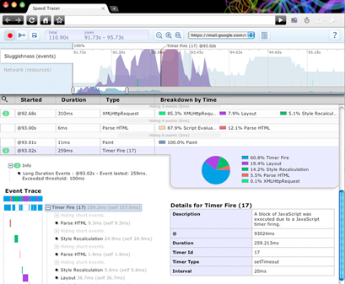
For example, Speed Tracer is an extension to help you identify and fix performance issues in your web applications. With Speed Tracer, you can get a better idea of where time is being spent in your application and troubleshoot problems in JavaScript parsing and execution, CSS style, and more.

Another useful extension is the Resolution Test that changes the size of the browser window, so web developers can preview websites in different screen resolutions. It also includes a list of commonly used resolutions, as well as a custom option to input your own resolution.

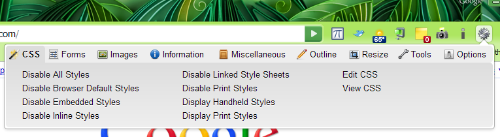
With the Web Developer extension, you can access additional developer tools such as validation options, page resizing and a CSS elements viewer; all from an additional button in the toolbar.

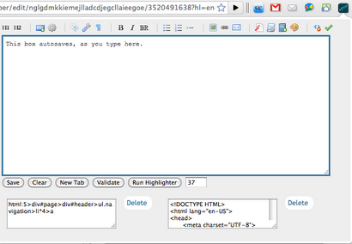
Another extension you should check out is the Chrome Editor that allows you to easily code within your browser, so you don’t have to flip between your browser and code editor. You can also save a code reference locally to your computer for later use.

These are just a few of the extensions you can find in our extensions for web development page. You can also look for more in the extensions gallery.

Written by Koh Kim, Google Chrome Team

Reference from:

http://www.chromium.org/devtools

http://feedproxy.google.com/~r/blogspot/amDG/~3/E33IhjSqZ4s/chrome-extensions-for-web-development.html

https://chrome.google.com/extensions/featured/web_dev

How Google Works

As a company, Google focuses on three key areas: Search, Ads and Apps. Search is our core technology; ads are our central business proposition; and apps are the umbrella over our web-based software that you can access anywhere, any time. While each of these has a lot of technology under the hood, the basic tenets for Search, Ads and Apps are very simple. We’ve created some short videos explaining the principles behind our core services. For more information or to share your thoughts, visit our Help Forum.

Learn more about how Google works

reference from: http://www.google.com/howgoogleworks